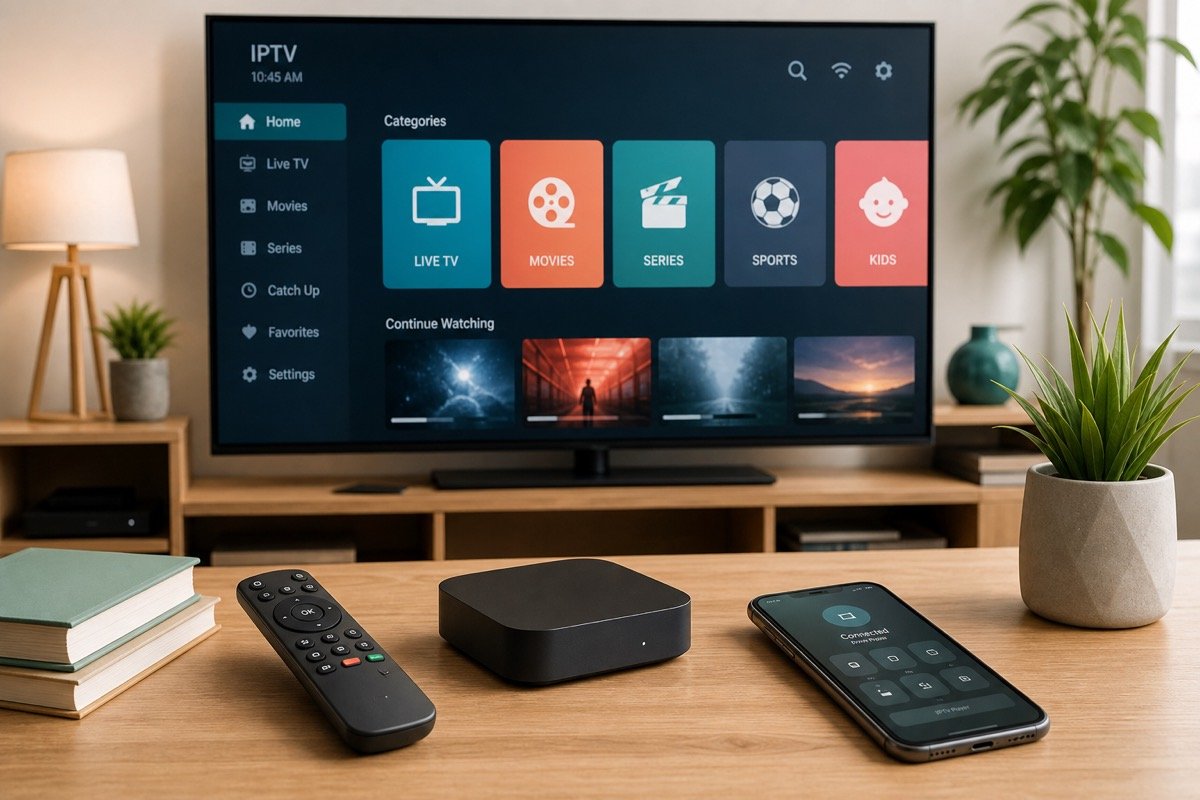
The TV-guide view that shows what is on now and next for each channel.
IPTV EPG setup
Set up the IPTV TV guide (EPG).
Add the electronic program guide, set your time zone and refresh the data so the channel schedule loads correctly on Firestick, Smart TV, Android and more.
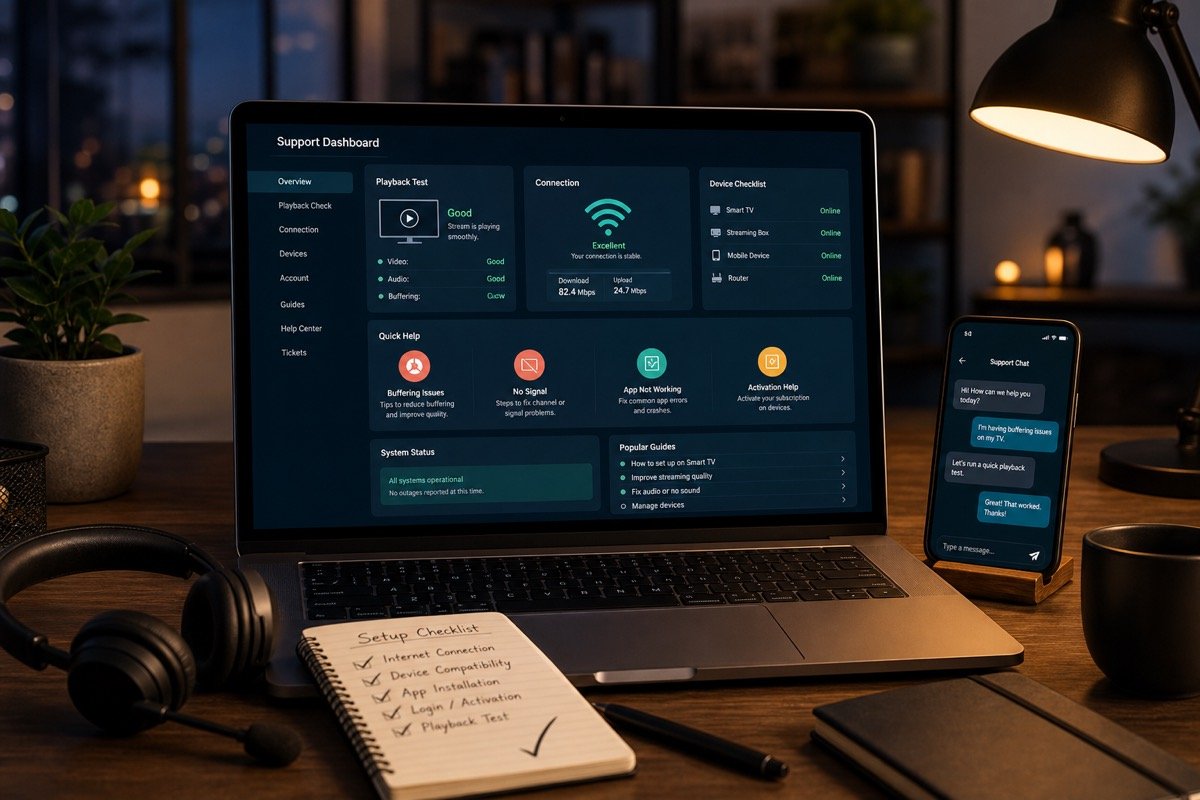
Refresh the guide, set the correct time zone, and restart the player app.
Live TV can play perfectly even while the guide is still loading or refreshing.
Turn on the EPG in your player
Open your IPTV player settings and find the EPG or "TV guide" section. Most players that use an Xtream login pull the guide automatically. For M3U setups, you may need to add an EPG (XMLTV) URL — ask support if you need yours.
Set the correct time zone
A guide that is shifted by several hours is almost always a time-zone setting. Set your player and device to your local time zone so program times line up with what is actually playing.
Refresh the guide data
Choose "update EPG" or "refresh guide" in the app, then restart the player so it rebuilds the schedule. Allow a minute or two for a large guide to download, especially on the first load.
Fix mismatched or missing channels
If some channels show no guide, their channel ID may not match the guide source. Re-refresh, clear the app cache, or ask support to confirm the right EPG source for your playlist.
Guide data coverage varies by channel, region and player app. Some channels may show limited or no program information even when the live stream works normally.
What the EPG is and why it matters
EPG stands for electronic program guide — the schedule-style view inside an IPTV player that shows what is on now and next for each channel. A working guide turns a long channel list into something you can actually browse: you can see when a match kicks off, what film starts next, and which shows are on later tonight. The important thing to understand is that the guide and the video stream are separate. If your channels play but the guide is blank, your account is fine; only the guide data needs to load or refresh.
How EPG data works
Guide data is delivered as an XMLTV file that your player matches to your channels using channel IDs. When you use an Xtream Codes login, most players pull this guide automatically. When you use a plain M3U playlist, you may need to add a separate EPG (XMLTV) URL in the player's settings. If some channels show a guide and others do not, it usually means those channels' IDs do not match the guide source — refreshing or re-selecting the EPG source normally fixes it.
Setting up the EPG in popular players
In most apps, open Settings and look for an "EPG", "Guide" or "TV guide" section. With an Xtream login, simply enable the guide and let it download. With M3U, paste your EPG/XMLTV URL into the EPG field and save. Players such as IPTV Smarters and TiViMate then build a grid you can scroll by channel and time. After adding or updating the guide, restart the app so it rebuilds the schedule — a large guide can take a minute or two to download the first time.
Fixing a guide that shows the wrong times
By far the most common EPG problem is a guide that is shifted by a few hours. This is almost always a time-zone setting, not a fault with your account. Set your device's time zone and, if your player has its own time-zone or "EPG offset" option, set that to match your local time. Once the time zone is correct, the programmes will line up with what is actually playing.
Refreshing and maintaining the guide
Guides update on a schedule, but you can force an update any time by choosing "update EPG" or "refresh guide" in your player, then restarting the app. If categories or guide data look stale after a renewal, refresh your playlist first (see our M3U & Xtream guide) and then refresh the EPG. Keeping the player updated through its official store also helps the guide stay reliable.
EPG across different devices
The same approach works whether you watch on Firestick, Smart TV, Android TV or Roku — enable the guide, set the time zone and refresh. Some lightweight players show a simpler "now and next" bar instead of a full grid; that is normal and the stream still works perfectly. For live sport, the guide is handy for spotting kickoff times during the World Cup 2026 and other events.
When to contact support
If channels play but the guide stays empty after refreshing and setting the time zone, message support with your player app name and device, and we will confirm the correct EPG source for your playlist. Most guide issues are solved in a single chat, and remember: even with no guide at all, your live channels and on-demand library keep working normally.
Understanding the XMLTV guide format
IPTV guides are delivered in a format called XMLTV. It is simply a structured file listing programmes, start and end times, and the channel each belongs to. Your player downloads this file and matches each programme to a channel using a channel ID. You do not need to understand the file itself — but knowing that the guide is a separate data source explains why channels can play perfectly while the guide is still loading, and why refreshing the EPG fixes most issues.
Matching channels to the guide
If most channels show a guide but a few do not, the missing ones usually have a channel ID that does not match the XMLTV source. The fix is normally to refresh the EPG, or to let support confirm the correct guide source for your playlist. It is rarely worth editing IDs by hand — a correct EPG source matches the large majority of channels automatically.
Catch-up and archive through the guide
On supported channels, a working EPG also unlocks catch-up: you can scroll back in the guide and replay a programme that has already aired, which is perfect for a match or show you missed. If catch-up options do not appear, make sure the guide has fully downloaded and that your player has catch-up or "archive" enabled in its settings.
Player-specific EPG tips
Different players present the guide differently. Grid-style players such as TiViMate and IPTV Smarters show a full channel-by-time matrix and let you set an EPG URL and time-zone offset in settings. Lighter players show a simple "now and next" line under the video — that is normal and the stream is unaffected. Whichever you use, the routine is the same: enable the guide, set your time zone, refresh, and restart the app so it rebuilds.
Using the guide for live sport
A correct EPG is especially useful for live sport, where kickoff times matter. During the FIFA World Cup 2026 you can use the guide to find each match, set the right time zone so kickoffs line up with your local clock, and save the sports channels to favourites for instant access. If you are still setting up your channels, start with our M3U & Xtream guide first, then add the EPG.
Still need help with your guide?
A correct EPG makes IPTV far easier to enjoy, turning a long channel list into a browsable schedule for live TV, sport and movies. If you have enabled the guide, set your time zone and refreshed but it still will not appear, message us on WhatsApp with your player app and device. We will confirm the right EPG source for your playlist and get the guide working — and remember, even without a guide, your 50,000+ live channels and full on-demand library keep playing normally.
EPG FAQ
Program guide questions.
What is the EPG in IPTV?
EPG stands for electronic program guide — the schedule-style view inside an IPTV player that shows current and upcoming programs for each channel when guide data is available.
Why is my IPTV EPG blank or wrong?
Usually missing guide data, an out-of-date guide, the wrong time zone, or channel IDs that do not match the guide source. Refreshing the EPG and setting the correct time zone fixes most cases.
How do I refresh the EPG?
Open player settings, find the EPG or guide option, and choose update or refresh. Restarting the app after a refresh helps the guide rebuild.
The channels work but the guide is empty — is my account broken?
No. The stream and the guide are separate. If channels play, your account is fine; only the guide data needs to load or refresh.
Why does my guide show the wrong times?
That is a time-zone setting, not an account fault. Set your device and player time zone to your local time and the programmes will line up.
My channels play but the guide is blank — is my account broken?
No. The stream and the guide are separate. If channels play, your account is fine; only the guide data needs to load or refresh.
How often does the EPG update?
Guides refresh on a schedule, but you can force an update any time with 'refresh guide', then restart the app so it rebuilds.
Do all channels have guide data?
Most do, but coverage varies by channel and region. Some channels may show limited or no guide even when the live stream works perfectly.
Can I get catch-up from the guide?
On supported channels, yes — scroll back in the guide to replay a recent programme, as long as the guide has fully downloaded and catch-up is enabled.
Need assistance?
Guide still not loading?
Tell us your player app and device, and support can confirm the right EPG source and settings for your account.