An M3U playlist URL or an Xtream Codes server, username and password.
M3U playlist & APK setup
Load your IPTV M3U playlist in minutes.
Paste an M3U URL or Xtream Codes login into a compatible IPTV player app or APK on Firestick, Android, Smart TV or PC — then refresh, test and save your channels.
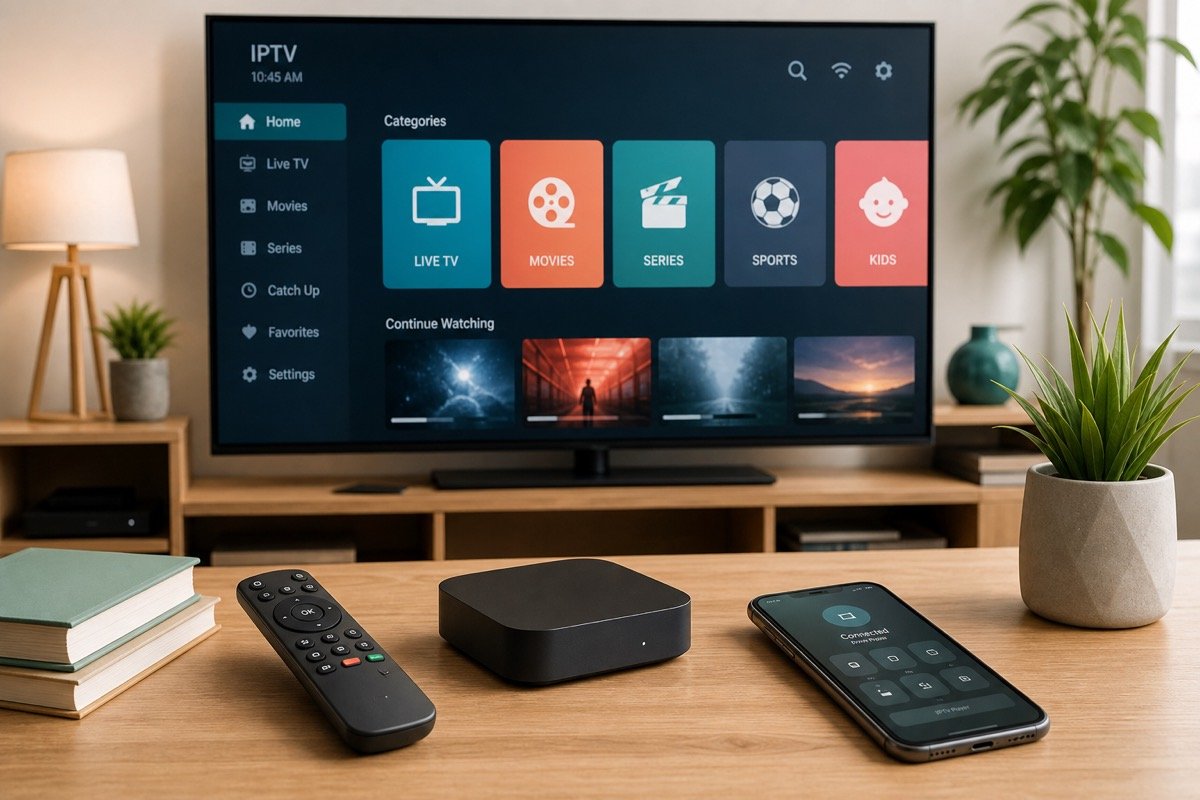
Into a compatible IPTV player app or APK on your device — not a web browser.
Never post your M3U URL or login publicly. Treat it like any paid account.
Install a compatible IPTV player or APK
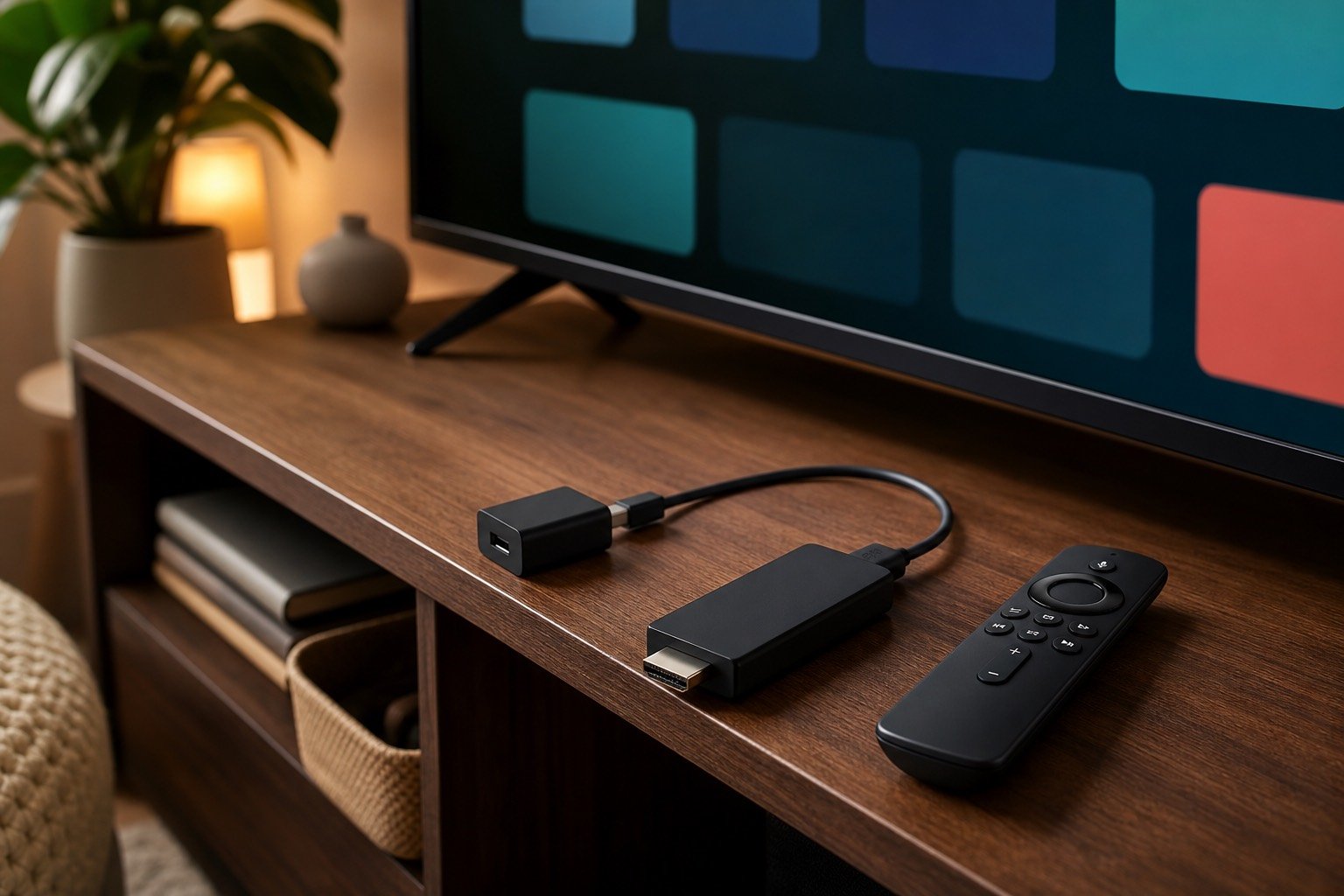
Choose a player that supports M3U and Xtream logins. On Firestick and Android, install it from the official store; if you sideload an APK, use a trusted source and keep it updated. On Smart TVs, use a player from the TV app store.
Add your playlist or Xtream login
For M3U: choose "Add playlist", give it a name and paste the full M3U URL. For Xtream: choose "Xtream Codes / API login" and enter the server URL, username and password exactly. Avoid trailing spaces and check capitalisation.
Let categories load, then test
Allow the app to download your channel list. Open live TV, play one channel, then test a movie or series. If you want the program guide, see our EPG setup guide.
Refresh and troubleshoot
After activation or renewal, use the player's "refresh playlist" option and clear the cache if categories look stale. To test a link quickly, open VLC, choose Open Network Stream and paste the M3U URL.
VLC and third-party player apps are referenced only for compatibility guidance. StreamFlex is not affiliated with these apps. Only install APKs from sources you trust and use content permitted in your location.
M3U and Xtream Codes explained
When you activate StreamFlex you receive your channels in one of two formats: an M3U playlist URL, or an Xtream Codes login. An M3U playlist is a single web link that tells a compatible IPTV player where to find your channels, categories and streams — you paste the link once and the player builds your full channel list. An Xtream Codes login instead uses three separate fields: a server URL, a username and a password. Both deliver exactly the same account; you simply use whichever format your chosen player supports. Xtream logins are often more convenient because they pull the electronic program guide and categories automatically.
How to load your playlist on any device
The steps are similar across players. Open your IPTV app and choose "Add playlist" or "Add user". For M3U, give the playlist a name and paste the full URL. For Xtream, select the Xtream Codes / API option and enter the server, username and password exactly. Save, then let the app download your channel list — large catalogues can take a minute on first load. Open live TV, play a channel, then check a movie or series so you know both live and on-demand are working.
Using popular players: Smarters, TiViMate, VLC and Kodi
StreamFlex works with most leading players. IPTV Smarters and similar apps accept both M3U and Xtream logins and offer a clean live-TV and VOD layout. TiViMate is popular on Android TV and Firestick for its excellent guide. VLC is perfect for a quick test — open Media > Open Network Stream and paste your M3U URL to confirm the link works, though a dedicated player is better for categories and the guide. Kodi can also play IPTV through a compatible add-on. Whichever you choose, install it from an official store where possible, and only sideload an APK from a source you trust.
Watching on Windows, Mac, Firestick, Android and Roku
On Windows and Mac you can use VLC or a desktop IPTV player and paste the same M3U URL. On Firestick and Android, install a player from the store and add your login — see our Firestick guide and Android TV guide. On a Smart TV, use a player from the TV's app store, and on Roku use a compatible player or screen mirroring. The same playlist works across all of them, so you can set up several devices from one account.
Refreshing your playlist and adding the EPG
After activation or renewal, use your player's "refresh playlist" option so new channels and categories appear, and clear the app cache if anything looks stale. To get the TV guide working, add your EPG (XMLTV) link or let your Xtream login pull it automatically — our EPG setup guide covers this in detail, including how to fix a guide that shows the wrong times.
Keeping your playlist private and secure
Your M3U URL and Xtream login are tied to your paid account, so treat them like a password. Never post them in public comments, forums or social media, and do not share them with strangers who claim they can "fix" your account — extra devices using your link can get your connection blocked. If you ever think your details have leaked, contact support and we will help you secure the account.
Troubleshooting common playlist problems
If the playlist loads but channels are empty, refresh it inside the app, restart the player and confirm the account is active — newly activated accounts sometimes need a few minutes to build the full list. If login fails, re-check for trailing spaces and that the server URL is in the correct field. If only some categories are missing, refresh again or clear the cache. Still stuck? Message support with your device, app name and the exact on-screen message and we will pinpoint it quickly.
M3U, M3U8 and playlist formats
You may see your link described as M3U or M3U8 — both are playlist formats and work the same way in a modern IPTV player; M3U8 simply uses UTF-8 encoding, which handles international channel names better. You do not need to convert anything: paste the link exactly as provided. If a player asks whether the playlist is "remote" (a URL) or "local" (a file), choose remote and paste your URL so the list updates automatically when channels change.
Using more than one playlist
Most players let you save several playlists side by side, each with its own name. That is handy if you set up more than one device or want to keep a test list separate from your main one. Remember that installing your playlist on multiple devices is fine, but the number of streams that can play at the same time depends on your plan's connection count — ask support about a 2 or 3 device option if you need simultaneous viewing.
Catch-up and video on demand through your playlist
As well as live channels, your StreamFlex playlist includes a large video-on-demand library — 250,000+ movies and 50,000+ series — and, on supported channels, catch-up so you can replay recent programmes. These appear as separate sections inside most players once the playlist finishes loading. If you only see live channels at first, give the app a moment to finish importing, then refresh.
Quick reference: the right field for each detail
Getting each value into the correct field prevents almost all login errors. An M3U URL goes in the single "playlist URL" field. An Xtream login splits into three: the server (sometimes called "portal" or "host") URL, the username and the password. Never paste an M3U link into an Xtream server field or vice versa. When in doubt, send support your player's name and we will tell you exactly which format and fields to use.
M3U & APK FAQ
Common playlist questions.
What is an IPTV M3U playlist?
An M3U playlist is a link that tells a compatible IPTV player where to load your channels, categories and streams. You paste the M3U URL into the player and it builds your channel list.
What is the difference between M3U and Xtream Codes?
An M3U setup uses one playlist URL. An Xtream login uses a server URL, username and password entered separately. Both deliver the same account — use the format your app supports.
Can I play an M3U playlist in VLC?
Yes. In VLC, open Media > Open Network Stream and paste your M3U URL to test it. A dedicated IPTV player is better for categories and the guide, but VLC is great for a quick check.
My playlist loaded but channels are empty — what now?
Refresh the playlist inside the app, restart it, and confirm the account is active. Newly activated accounts sometimes need a few minutes to build the full category list.
What's the difference between M3U and M3U8?
Both are playlist formats that work the same in a modern player. M3U8 uses UTF-8 encoding, which handles international channel names better. Paste either exactly as given.
Which player should I use?
Any player that supports M3U or Xtream works. IPTV Smarters and TiViMate are popular all-rounders; VLC is great for a quick test. We can recommend one for your device.
Can I load my playlist on more than one device?
Yes. Install it anywhere; the same link works everywhere. The number of simultaneous streams depends on your plan's connection count.
My playlist loaded but it's empty — what now?
Refresh the playlist inside the app, restart it, and confirm the account is active. New accounts can take a few minutes to build the full list.
Is it safe to enter my M3U URL?
Yes, into a trusted player. Keep the URL private — it is tied to your paid account — and never post it publicly or share it with strangers.
Need assistance?
Stuck on a playlist or login?
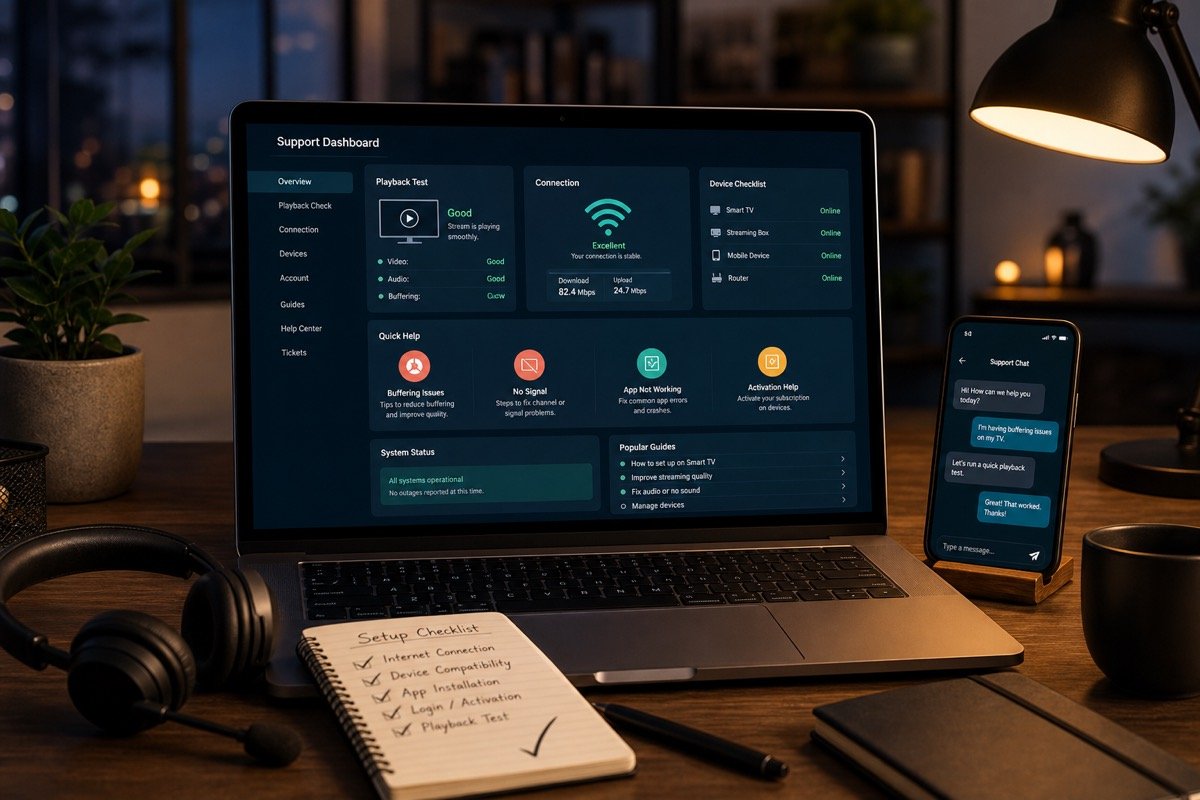
Send your device, app name and the exact message you see, and support will help you load the playlist correctly.